


Running Windows Apps on Linux

Bottle Service

© Lead Image © maroti, 123RF.com
Bottles lets you run Windows apps and games on Linux in clean, isolated environments without dual-booting.
Linux has thousands of native apps, but occasionally you may still need to run a Windows program. Perhaps it's a proprietary tool from work, a niche utility, or a legacy application that has no Linux equivalent.
Traditionally, Linux users have relied on Wine, a compatibility layer that allows Windows applications to run on Linux without a full virtual machine. Wine is powerful, but it can also be intimidating for beginners because it often requires manual configuration.
To make this easier, you can use Bottles [1], which wraps Wine in a modern graphical interface that simplifies installation, configuration, and troubleshooting. Instead of managing one global Wine setup, Bottles organizes Windows applications into standalone environments known as bottles.
A bottle is essentially an isolated, self-contained Windows environment. Each bottle contains its own filesystem, Windows registry, libraries and dependencies, and configuration settings. This isolation is one of Bottles's biggest strengths. If you install multiple Windows applications, each can run inside its own environment with settings tailored specifically for that program.
Think of bottles as lightweight sandboxes for Windows applications. If one program requires unusual tweaks or additional components, those changes remain confined to that bottle and do not affect the other Windows apps or the rest of your system.
Installing Bottles
The easiest way to install Bottles is through Flatpak, which provides a consistent installation experience across Linux distros. Many modern distros already ship with Flatpak enabled. If it is not installed, you can add it through your distro's package manager. For Ubuntu/Debian, use
sudo apt install flatpak
For Fedora, use
sudo dnf install flatpak
Next, ensure the Flathub repository is available, with
$ flatpak remote-add --if-not-exists flathub https://flathub.org/repo/flathub.flatpakrepo
Finally, install Bottles using
$ flatpak install flathub com.usebottles.bottles
Once installation has completed, launch Bottles from your desktop's application menu.
The first launch may take a little longer than usual because Bottles downloads the runtime components required to support Windows compatibility. You might also be asked for permission to update some core components such as winebridge.
Creating Your First Bottle
When Bottles starts for the first time, you'll see a clean interface with an option to create your first bottle. Click Create New Bottle or the + button to begin.
Bottles offers three preset environments designed for different use cases (Figure 1). These presets automatically configure the underlying runtime. The Application option helps optimize the bottle for Windows software. The Gaming option tunes the bottle for graphics performance and game compatibility. The Custom option, for experienced users, allows you to manually configure your bottles.
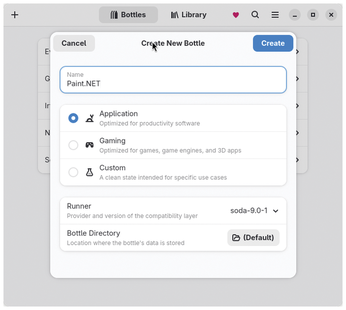
For your first experiment, select Application.
Give the bottle a name, preferably based on the application you'll run inside it (e.g., IrfanView or Notepad) and click Create. Bottles will now download and configure the required runtime components.
This process may take a few minutes depending on your Internet connection. Once it finishes, the bottle will appear on the main dashboard.
Installing a Windows Application
Bottles offers a couple of mechanisms for installing Windows software. The most common mechanism uses an executable Windows installer file.
To begin, open the newly created bottle. Inside the bottle, you'll see options for managing programs, dependencies, and settings (Figure 2). To install a Windows application, click Run Executable… and select your downloaded Windows installer file (usually with an .exe extension).
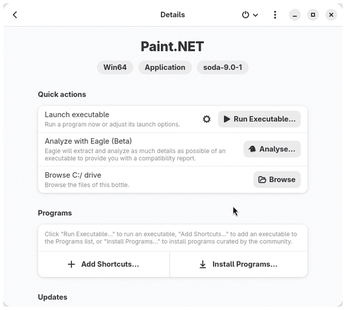
Bottles launches the installer exactly as Windows would. Simply follow the setup wizard and complete the installation.
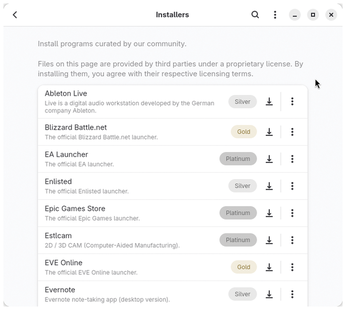
You can also install apps using a pre-built installer curated by the Bottles community. Click the Install Programs… button to bring up a list of apps. Each installer is marked with a compatibility grade based on the results of the testing. The grades are ranked from Bronze, which is the lowest compatibility grade, to Silver, then Gold, and finally Platinum, which is the highest compatibility grade (Figure 3). Click on any program to download and install it from within Bottles itself.
Starting with version 61, Bottles has introduced a major new analysis tool called Eagle. You can use Eagle to inspect Windows executables before you install them in order to make them run more smoothly on Linux (see the box titled "Analyzing Windows Apps with Eagle").
Analyzing Windows Apps with Eagle
Recent versions of Bottles ship with a feature called Eagle, which helps you understand a Windows application before running it.
Traditionally, running Windows software on Linux often involves trial and error. You install a program, attempt to launch it, and then troubleshoot any missing libraries or compatibility issues.
Eagle simplifies this process by analyzing the Windows executable to detect required frameworks, runtimes, and dependencies before you install them. It analyzes the binary and suggests specific Bottles settings or libraries to ensure the software runs smoothly on Linux.
To analyze a program, open a bottle, and navigate to the Quick actions section. Click the Analyse… button and traverse the filesystem to find the Windows executable you want to inspect.
Eagle will then scan the file and generate a report showing all kinds of technical details about the application, such as whether the app is 32-bit or 64-bit, which frameworks it depends on, which Windows release it needs, and more. It will also helpfully suggest configuration overrides to ensure the app runs smoothly.
Buy this article as PDF
(incl. VAT)
Buy Linux Magazine
Subscribe to our Linux Newsletters
Find Linux and Open Source Jobs
Subscribe to our ADMIN Newsletters
Support Our Work
Linux Magazine content is made possible with support from readers like you. Please consider contributing when you’ve found an article to be beneficial.

News
-
Bottlenecks Discovered by Meta Engineers Lead to Scalability Improvements
Thanks to a small group of engineers at Meta, the Linux kernel module kernfs has been improved, which has led to some serious gains.
-
PwnEscape Poses VM Vulnerability
A guest-to-host escape flaw in Linux KVM, named PwnEscape, might be yet another means of attacking Linux.
-
Linux Mint 27 Set for a Christmas Release
The developers behind Linux Mint have announced a Christmas release, and it looks like Santa's sack will be brimming with features.
-
Is Linus Torvalds Vibe Coding?
The creator of Linux has added AI into his process for Linux kernel development, and it's more than just for debugging.
-
openKylin 3.0 Released with Expanded AI Integration
The latest release features a pre-installed AI agent to help perform tasks.
-
DigitalOcean Ends Open Source Credits Program
In a change that has surprised many open source developers, DigitalOcean has decided to sunset its Open Source Credits Program.
-
Office 365 Available for Testing on Linux via Bottles
Linux users can now test the official Office 365, thanks to Mirko Brombin's work on Bottles.
-
Dutch Government Turns to Open Source for Digital Sovereignty
Following in the footsteps of other European countries, the Netherlands is looking to increase its sovereign digital infrastructure with open source software.
-
Linux May Soon Work on Snapdragon X2-Based PCs
If you're thinking about buying a Snapdragon X2-based desktop or laptop, Linux may soon be an option.
-
KDE for People Initiative Calls for AI Ban in Plasma
A new community of KDE wants the project to adopt a strict no-AI policy for KDE Plasma.