An AI Terminal Assistant
Running Shell Commands
Gemini CLI also lets you run regular Linux commands. To do this, you need to prefix a command with ! (Figure 4), and then Gemini CLI executes the command in your local shell:
> !ls -al
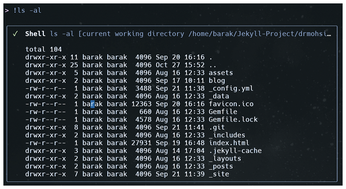
If you need to switch back from the shell mode, just enter ! or hit the Esc key. As a result, you rarely need to switch out of the CLI environment when running general prompts and commands simultaneously.
Working with Local Files
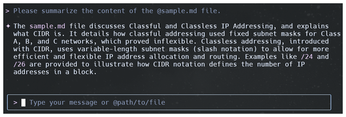
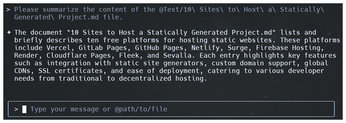
Another interesting Gemini CLI feature is the ability to work on files such as scripts, configs, source code, etc. To attach a file, you append an @ symbol before the file name in your prompt as shown in Figure 5. If the files are in a different directory, you can modify the prompt by giving a full path for the file as shown in Figure 6.
Built-In Tools
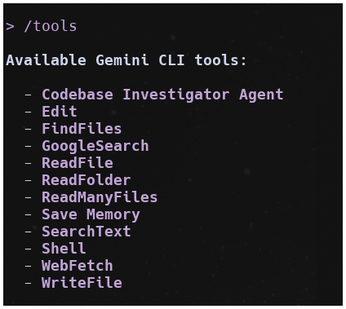
Gemini offers many built-in tools to make your work easier. To see a list of available tools, enter
> /tools
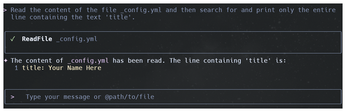
Figure 7 shows a list of tools that can help you with writing files, reading content, or generating structured output. For example, the prompt in Figure 8 will search for a text string inside a specific file.
« Previous 1 2 3 Next »
Buy this article as PDF
(incl. VAT)