Exploring the OpenWrt router OS
WPA3
WiFi Protected Access 3 (WPA3), the latest WiFi security standard, was announced in 2018. WPA3 provides extra security protection with stronger encryption. OpenWrt has offered WPA3 support for many devices since the OpenWrt 21.02 release, even including for old devices that don't have WPA3 support in their default firmware. OpenWrt needs the wpad-openssl package for WPA3 support. You can install wpad-openssl using the following command:
apk add wpad-openssl
An alternative way is to use the Firmware Selector and replace wpad with wpad-openssl in the package list.
The last step is to configure the Access Point: choose Network | Wireless. Select encryption SAE-mixed if you have some devices that don't support WPA3 or SAE only if all devices support WPA3.
Connecting to Another WiFi Network
There are several reasons why a connection to another router from your main router might be needed. The most common reason is probably an unexpected ISP connection failure. A wireless connection from a router to a smartphone (often called tethering) or to a neighbor's router (it's nice to have a friendly neighbor) can save time and help you get work done. In another case, a direct router-to-router connection is easier and more convenient for measuring signal levels and network throughput.
First of all, you need to set the LAN subnet to 192.168.2.1/24 (Figure 8) to avoid possible collisions with the popular default 192.168.1.1/24 subnet. Then go to the Wireless page and click the Scan button.
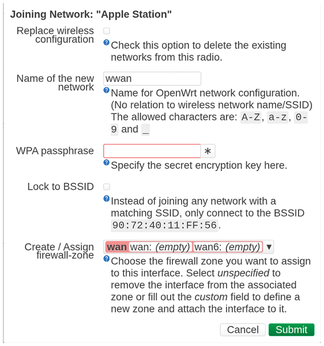
The target access point should be within a good signal range. Then, click Join Network. In the next window, click the Replace wireless connection checkbox. Enter the WPA passphrase, and make sure the firewall zone is set to wan/wan6. Do not change the WiFi channel number – it can change dynamically. Press Save and then Save & Apply, and the new connection should work fine.
Ad Blocking
Online advertisements use a lot of traffic and take up the user's time because pages with ads load more slowly. Although router-based ad blocking can't block all ads, it can definitely eliminate many of them for devices.
OpenWrt provides several ad-blocking solutions: Adblock, Adblock-Fast, Adblock-lean, and AdGuard Home. You'll find a summary of the options at the OpenWrt website [9]. I have experience with Adblock, so I recommend choosing it. The configuration details are in Listing 2.
Listing 2
Adblock Setup
# Install the required packages
apk add adblock luci-app-adblock ca-certificates
service adblock enable
# Then, the graphical configuration tool will be available on
#  LuCI -> Services -> Adblock
# More Adblock feeds can be added via the above menu
# Check adblock status:
/etc/init.d/adblock status
::: adblock runtime information
  + adblock_status  : enabled
  + frontend_ver    : 4.5.0-r1
  + backend_ver     : 4.5.0-r1
  + blocked_domains : 582 457
  + active_feeds    : 1hosts, adguard, adguard_tracking, bitcoin, certpl
  + dns_backend     : unbound (1.24.2-r1), /mnt/data/adblock/backup, 234.93 MB
  + run_ifaces      : trigger: wan, report: br-lan
Buy this article as PDF
(incl. VAT)