


Setting up a home desktop system with FreeBSD
First Reboot
Having allowed the installer to complete, and having rebooted, it is time to log in. As this is still the setup phase of the project, log in using the username root and your root password. On logging in, you should find a command-line environment that's not too different from the Linux environment you're familiar with. Most of the usual commands work in the same way, such as ls, cd, and cat. Behind the scenes, the difference is that these standard commands are provided as part of the BSD base system. Whereas, in Linux, the classic, Unix-like commands are provided by the GNU coreutils package.
In the same respect, the filesystem layout is much like the Linux layout. Expect to find your system logs in /var/log and your configuration files in /etc. There are some differences in the Linux layout you might be familiar with, but bear in mind that there are differences in file locations even among the different Linux distributions.
Set Up SSH
I like to use SSH to access the command line of a remote or virtual machine when setting it up, and I enabled it as part of the setup process during installation. If you want to log in from a Linux box, discover the IP address of the new setup with this command on the remote, FreeBSD machine:
ifconfig
You can now type in ssh root@xxx.xxx.xxx.xxx to log into the FreeBSD machine from a Linux machine, substituting the IP address for the address that's reported by ifconfig. If you're running your FreeBSD installation in a virtual machine (VM), make sure that the network adapter is being issued with its own IP address so that you can log in from the outside. For example, in VirtualBox, the option is called Bridged Adapter (in the Network tab in the settings for the VM).
Add sudo
You can now add an everyday user. Then, configure the system so the everyday user can type su - to issue commands as root without running as the root user at all times. While logged in as the root user, type:
pw groupmod wheel -m user_name
You might be missing the convenience of the alternative sudo command from Linux, which lets you execute a command with elevated privileges without switching to the root user, but actually, it is easy to add sudo to FreeBSD. First, install sudo:
pkg install sudo
Rather than manually editing the configuration file, run the following command:
visudo
There are a few options for which line to uncomment (Figure 2), but for consistency, configure sudo so that users in the wheel group are able to use sudo, matching the su permissions. Scroll down to the bottom of the configuration file, and look for this line:
# %wheel ALL=(ALL:ALL) ALL
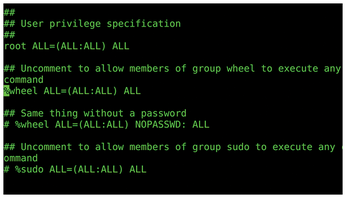
Note that there are a number of similar lines in this area of the file, so make sure you are uncommenting the right line. Remove the # character to uncomment it. If you're unfamiliar with the vi way of doing things, press Esc to enter edit mode. Delete the # character with the Delete key (not Backspace). Press : to enter command mode, and press w to write the altered file. Press : to enter command mode again and q to exit the editor.
This setup means that you can type su - to become the root user when you are going to enter multiple lines of commands, and you can type sudo when you need to type in a single line that requires superuser privileges. If you are using su -, don't forget to type exit when you no longer need the superuser privileges. Remember that the su - command requires the superuser password, and sudo requires the password of the regular user.
« Previous 1 2 3 4 Next »
Buy this article as PDF
(incl. VAT)
Buy Linux Magazine
Subscribe to our Linux Newsletters
Find Linux and Open Source Jobs
Subscribe to our ADMIN Newsletters
Support Our Work
Linux Magazine content is made possible with support from readers like you. Please consider contributing when you’ve found an article to be beneficial.

News
-
Dutch Government Turns to Open Source for Digital Sovereignty
Following in the footsteps of European countries, the Netherlands is looking to increase its sovereign digital infrastructure with open source software.
-
Linux May Soon Work on Snapdragon X2-Based PCs
If you're thinking about buying a Snapdragon X2-based desktop or laptop, Linux may soon be an option.
-
KDE for People Initiative Calls for AI Ban in Plasma
A new community of KDE wants the project to adopt a strict no-AI policy for KDE Plasma.
-
KDE Sets Ambitious Goals for 2026 and Beyond
KDE Connect reveals the goals for the Linux desktop darling, with one of those goals long overdue.
-
It’s Time to Test Fedora 45 Beta
Fedora 45 beta has been released with updated Gnome, KDE Plasma, and kernel.
-
Ubuntu Stonking Stingray Gets Even Rustier
Ubuntu 26.10 has completed its migration to the Rust-based coreutils.
-
AI Fixes Linux Bottlenecks Using “Hideous” Code
A Linux developer used AI to fix bottlenecks that caused problems when building the kernel. The resulting AI-generated code needed a lot of work.
-
Advanced Video Coding Still Under Patent
Brazilian patent BRPI0109962B1 has expired, which means that DivX and Xvid are no longer problematic for Linux, but it doesn’t mean that video is all of a sudden fully unleashed.
-
2,000 Vulnerabilities per Linux Release
Thanks to AI bug hunters, the Linux kernel is seeing record numbers of vulnerabilities, and it's overwhelming developers.
-
Linux Exempt from California’s Age Verification Law
So long as Linux is distributed under the GPL, MIT, BSD, and Apache licenses, the OS is exempt from being required to verify the age of its users in California.