


Keep your containers updated with What's up Docker?
Monitor Version Tags
Clicking on the container block on WUD's homepage will display a list of containers running on the same host, along with their image version. Because the WUD container has access to the Docker socket, it can retrieve this information directly from the Docker engine for all containers. You can quickly identify whether a container is outdated, with a suggestion to upgrade to a specific version.
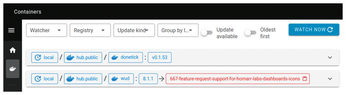
Overall, this process works well, though WUD occasionally requires some guidance. By default, it even misinterprets information about WUD itself. WUD might suggest upgrading from version 8.1.1 to an image tagged as 667-feature-request-support-for-homarr-labs-dashboards-icons (Figure 3), which is not a regular version. The developer uploaded an image with this tag for testing on Docker Hub, and WUD sees 667 as a larger number than eight, thereby suggesting it as an upgrade. Thankfully, you can add a label to the Docker container with a regular expression that filters which tags you want to consider as versions. For the typical major.minor.patch format, add the label as follows to the WUD container in docker-compose.yml:
labels:
      - wud.tag.include=^\d+\.\d+\.\d+$$
Note that you need to duplicate every dollar sign in the regular expression.
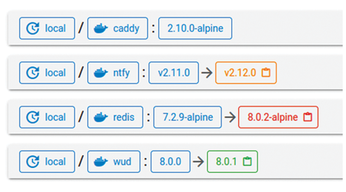
After running docker-compose up -d, WUD will focus solely on tags that start with digits followed by a period, more digits, another period, and again more digits. If the tags of a container image always start with a v, add that v before the first \d in the regular expression. If the container also offers Alpine-based versions, you typically obtain those by appending -alpine before the $$. With the right regular expressions, you now have a nice overview of available updates for all your containers (Figure 4).
Release Notes
Now that you know which new versions are available for your containers, you need to find the release notes. These are usually published on predictable URLs, so you can label each container to specify how the link to the release notes of a specific version looks. For projects whose releases are published on GitHub, add a link by attaching a label like this to the container:
- wud.link.template=https://github.com/getwud/wud/releases/tag/$${major}.$${minor}.$${patch}If your project uses a different versioning system than major.minor.patch, you can also use $${original} for the full image tag. WUD inserts the version number into the URL to provide the correct release notes URL for each new version. Remember to duplicate any dollar sign.
You can also customize the name and icon WUD displays for the container with the following labels (see the box "Icon Sources" for where to find icons):
- wud.display.name=What's up Docker
      - wud.display.icon=sh-wud
Icon Sources
WUD supports icons from various websites to display alongside your containers. You can indicate the source using a prefix: sh- for selfh.st [3]; si- for Simple Icons [4]; mdi- for Material Design Icons [5]; hl- for Dashboard Icons [6]; and fab-, far-, and fas- for brand, regular, and solid icons, respectively, from Font Awesome [7]. Simply search for a project on one of these websites and use the name from the search results with the appropriate prefix in the label for your container.
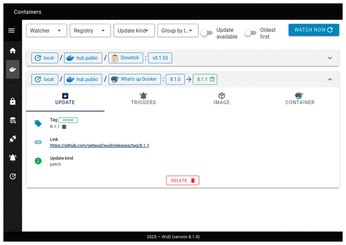
Now add the same information with labels for the other containers in your Docker Compose file. After running docker-compose up -d, your container list in WUD will become much clearer, with an icon and readable name for each container. When you expand a container's entry, you'll also see a clickable link to the release notes of the new version that WUD found (Figure 5).
Adjust the Default Watcher
Notice that WUD has one watcher configured in its web interface. WUD creates this by default if you don't set any up. Clicking on 1 watchers on the homepage expands to show a docker / local watcher. Clicking it reveals its properties, such as the configured Docker socket. The property Cron is set to 0 * * * *, indicating WUD checks for updates every hour. For more information on this notation, visit Crontab Guru [8].
Additionally, Watchall is set to false, meaning WUD checks only running containers for updates instead of all created ones. Watchbydefault, set to true, implies containers don't need to specify that they should be monitored by WUD. If you wish to monitor only specific containers, you need to set this to false and label containers you want to monitor with wud.watch=true. When Watchevents is set to true, WUD checks for updates upon a container's start.
To modify the default watcher's properties, you must set environment variables for the WUD container. For example, to monitor updates only once a day at 3:05am, add this environment variable to the WUD container in docker-compose.yml:
environment:
      - WUD_WATCHER_LOCAL_CRON=5 3 * * *
Other properties of the watcher have corresponding environment variables, for example, WUD_WATCHER_LOCAL_WATCHBYDEFAULT for Watchbydefault. After running docker-compose up -d, your local watcher configuration will be updated.
« Previous 1 2 3 4 Next »
Buy this article as PDF
(incl. VAT)
Buy Linux Magazine
Subscribe to our Linux Newsletters
Find Linux and Open Source Jobs
Subscribe to our ADMIN Newsletters
Support Our Work
Linux Magazine content is made possible with support from readers like you. Please consider contributing when you’ve found an article to be beneficial.

News
-
Ubuntu MATE Dev Leaving After 12 years
Martin Wimpress, the maintainer of Ubuntu MATE, is now searching for his successor. Are you the next in line?
-
Kali Linux Waxes Nostalgic with BackTrack Mode
For those who've used Kali Linux since its inception, the changes with the new release are sure to put a smile on your face.
-
Gnome 50 Smooths Out NVIDIA GPU Issues
Gamers rejoice, your favorite pastime just got better with Gnome 50 and NVIDIA GPUs.
-
System76 Retools Thelio Desktop
The new Thelio Mira has landed with improved performance, repairability, and front-facing ports alongside a high-quality tempered glass facade.
-
Some Linux Distros Skirt Age Verification Laws
After California introduced an age verification law recently, open source operating system developers have had to get creative with how they deal with it.
-
UN Creates Open Source Portal
In a quest to strengthen open source collaboration, the United Nations Office of Information and Communications Technology has created a new portal.
-
Latest Linux Kernel RC Contains Changes Galore
Linux kernel 7.0-rc3 includes more changes than have been made in a single release in recent history.
-
Nitrux 6.0 Now Ready to Rock Your World
The latest iteration of the Debian-based distribution includes all kinds of newness.
-
Linux Foundation Reports that Open Source Delivers Better ROI
In a report that may surprise no one in the Linux community, the Linux Foundation found that businesses are finding a 5X return on investment with open source software.
-
Keep Android Open
Google has announced that, soon, anyone looking to develop Android apps will have to first register centrally with Google.