


Putting the Affinity graphics suite on Linux
Affinity Photo
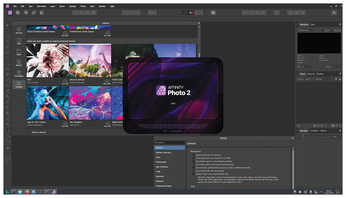
As Figure 2 shows, Affinity Photo works on Linux. Despite the unknown error at the end of the installation process, all basic functionality, including editing and importing and exporting files, works fine. As a last resort, you will find a reinstall option with a Repair button that eliminates the error completely. Overall, the usability is good. I did find that a lag and a black screen sometimes appears for one second, but this is a rather rare event. I hope that with a more powerful GPU, Affinity will work much better. During essential photo editing operations, the Photo app sometimes feels like a native Linux application rather than a Windows app running on Wine. This illusion looks realistic because launching the Affinity application is exactly like launching any other Linux application – click on the icon, and it's ready to use.
One of the biggest advantages of Affinity Photo is its Smart Selection feature, which uses AI to select the main object or subject in photos. With minimal manual interaction, you can select portraits, animals, vehicles, and other things within the image. The AI works locally, so user data is always stored on the device and not on a remote server, which is great for security. The machine learning model size is less than 500MB. You can check the size using the following menu path: Edit | Settings | Machine Learning. Smart Selection is superior in comparison to Gimp and Krita because it is faster and more intuitive, though not always as accurate as Adobe Photoshop. Selecting complex edges is still a problem. For instance, it might be difficult to select a car with a dark color in front of a wall with a similar color.
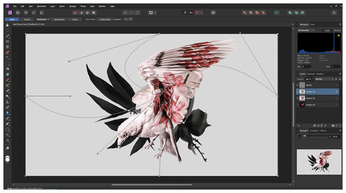
Mesh Warp is another important and powerful tool in the Affinity Suite (Figure 3). The Mesh Warp tool allows you to transform an image or part of image in a non-destructive way, such as moving it or choosing an angle. There is also a built-in grid to check the vertical and horizontal levels, similar to a traditional camera. You can activate Mesh Warp by clicking on the button on the left vertical toolbar. You will find the official documentation online [12].
Affinity Photo includes several useful features that are worth noting. For example, you will find a rich set of retouching tools, including Burn (adjusts the exposure to darken the painted area), Dodge (the opposite of Burn), Clone, Patch, Red Eye, and Blemish Removal tools. The Inpainting Brush is great for removing entire objects.
Affinity Photo also comes with full RAW support: 32-bit end-to-end experience and support for OpenColorIO (OCIO v2) color management (OCIO v2 is a system designed to improve color workflow accuracy, performance, and flexibility).
You can colorize black-and-white photos. Affinity also provides support for live layer masks – non-destructive masks based on hue, luminosity, and frequency. Live layer masks can update automatically based on the properties of the underlying image. The application is constantly improving, so you might find additional new features that weren't present when I wrote this article.
Affinity Designer
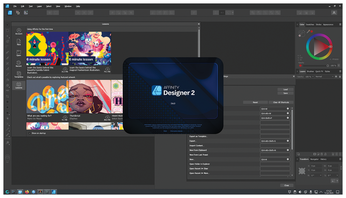
Affinity Designer (Figure 4) also works well on Linux. The installation process is flawless with no errors. The application's usability is similar to Affinity Photo's: good overall, but I experienced a few black-screen glitches and micro lags. Importing and exporting documents worked as expected.
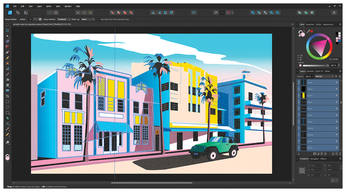
The Shape Builder Tool is arguably one of Affinity Designer's best features. Drawing different shapes is a routine design task, and they often overlap by design or coincidence. For example, consider two overlapping circles. You have several options for dealing with the overlapping surface: Remove the intersected part of one circle, the intersected part of the other circle, or both intersected parts. The Shape Builder Tool can do all of that and more: Just draw a line and all crossed segments will be removed. Figure 5 illustrates this behavior: See the vertical line drawn near the left palm tree and the two windows nearby, with a yellow wall between. On that yellow wall was another window, identical to the other two, and this window was removed by the Shape Builder Tool: one click on the left toolbar activated the tool, then I drew a line from top center of the yellow wall to bottom center and the window was gone.
Affinity Designer can handle thousands of objects with no lag. A little lag was detected on my Linux system, but it could be eliminated with a more powerful GPU. Full-featured vector and raster workspaces allow you to add raster brush textures to vector illustrations. Also included are time-saving tools such as grids, guides, planes, linked symbols, and constraints, as well as customizable keyboard shortcuts. Designer comes with lots of built-in artboards, which are great for templates, mock-ups, and menus. You can also enable Pencil Tool Smoothness to draw smoother lines without sharp angles. Designer supports many file formats, including JPEG, PDF, SVG, PSD (Adobe Photoshop), PNG, TIFF, GIF, and DWG/DXF (AutoCAD).
Affinity Publisher
The final app in the Affinity trio is Publisher. Unlike the other applications in the Affinity Suite, this application has a real and powerful open source competitor: Scribus [13]. Of the three Affinity apps, Publisher works best on Linux It is really fast with minimal lag and feels like a native application.
Figure 6 shows the main menu on Linux. This application is a helpful tool for media production, including books, magazines, social media posts, website mock-ups, and more. If you have content that needs to be prepared for digital or physical publication, this is the right tool for the job. The Publisher is much more user-friendly than Scribus.
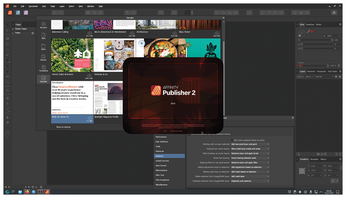
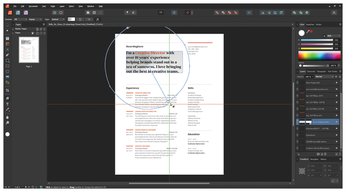
Figure 7 shows an example of editing a CV template. Publisher can help you prepare a portfolio, presentation, book, annual report, or any other document with outstanding visibility. It supports raster and vector PSD, AI, PDF, JPG, TIFF, DWG, and Affinity file formats. The merging option is useful for working with external text, CSV, JSON, or Excel files. Color support is excellent: Publisher supports Pantone (standardized color matching to ensure consistent and accurate color communication), end-to-end CMYK, and ICC color management.
« Previous 1 2 3 Next »
Buy this article as PDF
(incl. VAT)
Buy Linux Magazine
Subscribe to our Linux Newsletters
Find Linux and Open Source Jobs
Subscribe to our ADMIN Newsletters
Support Our Work
Linux Magazine content is made possible with support from readers like you. Please consider contributing when you’ve found an article to be beneficial.

News
-
Introducing matrixOS, an Immutable Gentoo-Based Linux Distro
It was only a matter of time before a developer decided one of the most challenging Linux distributions needed to be immutable.
-
Chaos Comes to KDE in KaOS
KaOS devs are making a major change to the distribution, and it all comes down to one system.
-
New Linux Botnet Discovered
The SSHStalker botnet uses IRC C2 to control systems via legacy Linux kernel exploits.
-
The Next Linux Kernel Turns 7.0
Linus Torvalds has announced that after Linux kernel 6.19, we'll finally reach the 7.0 iteration stage.
-
Linux From Scratch Drops SysVinit Support
LFS will no longer support SysVinit.
-
LibreOffice 26.2 Now Available
With new features, improvements, and bug fixes, LibreOffice 26.2 delivers a modern, polished office suite without compromise.
-
Linux Kernel Project Releases Project Continuity Document
What happens to Linux when there's no Linus? It's a question many of us have asked over the years, and it seems it's also on the minds of the Linux kernel project.
-
Mecha Systems Introduces Linux Handheld
Mecha Systems has revealed its Mecha Comet, a new handheld computer powered by – you guessed it – Linux.
-
MX Linux 25.1 Features Dual Init System ISO
The latest release of MX Linux caters to lovers of two different init systems and even offers instructions on how to transition.
-
Photoshop on Linux?
A developer has patched Wine so that it'll run specific versions of Photoshop that depend on Adobe Creative Cloud.