


An AI Terminal Assistant
Running Shell Commands
Gemini CLI also lets you run regular Linux commands. To do this, you need to prefix a command with ! (Figure 4), and then Gemini CLI executes the command in your local shell:
> !ls -al
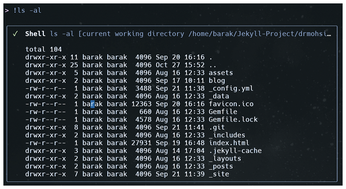
If you need to switch back from the shell mode, just enter ! or hit the Esc key. As a result, you rarely need to switch out of the CLI environment when running general prompts and commands simultaneously.
Working with Local Files
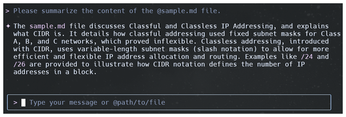
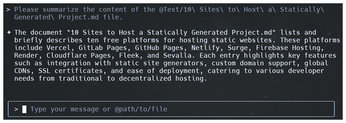
Another interesting Gemini CLI feature is the ability to work on files such as scripts, configs, source code, etc. To attach a file, you append an @ symbol before the file name in your prompt as shown in Figure 5. If the files are in a different directory, you can modify the prompt by giving a full path for the file as shown in Figure 6.
Built-In Tools
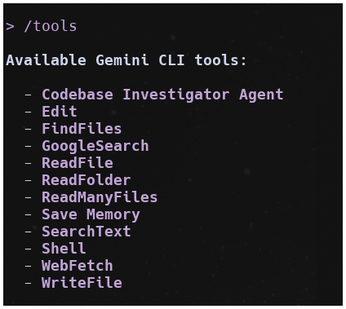
Gemini offers many built-in tools to make your work easier. To see a list of available tools, enter
> /tools
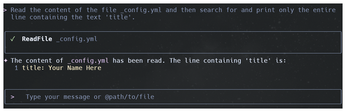
Figure 7 shows a list of tools that can help you with writing files, reading content, or generating structured output. For example, the prompt in Figure 8 will search for a text string inside a specific file.
« Previous 1 2 3 Next »
Buy this article as PDF
(incl. VAT)
Buy Linux Magazine
Subscribe to our Linux Newsletters
Find Linux and Open Source Jobs
Subscribe to our ADMIN Newsletters
Support Our Work
Linux Magazine content is made possible with support from readers like you. Please consider contributing when you’ve found an article to be beneficial.

News
-
Ubuntu Core 26 Offers Game-Changing Enterprise Features
Ubuntu Core 26 could be a game-changer for organizations looking for increased security and reliability.
-
AI Flooding the Linux Kernel Security Mailing List
AI is giving Linus Torvalds a headache, but not in the way you might think.
-
Top Priorities for Open Source Pros Seeking a New Job
Professional fulfillment tops the list, according to LPI report.
-
Container-Based Fedora Hummingbird Designed for Agent-First Builders
Fedora Hummingbird brings the same approach to the host OS as it does to containers to level up security.
-
Linux kernel Developers Considering a Kill Switch
With the rise of Linux vulnerabilities, the kernel developers are now considering adding a component that could help temporarily mitigate against them… in the form of a kill switch.
-
Fedora 44 Now Gaming Ready
The latest version of Fedora has been released with gaming support.
-
Manjaro 26.1 Preview Unveils New Features
The latest Manjaro 26.1 preview has been released with new desktop versions, a new kernel, and more.
-
Microsoft Issues Warning About Linux Vulnerability
The company behind Windows has released information about a flaw that affects millions of Linux systems.
-
Is AI Coming to Your Ubuntu Desktop?
According to the VP of Engineering at Canonical, AI could soon be added to the Ubuntu desktop distribution.
-
Framework Laptop 13 Pro Competes with the Best
Framework has released what might be considered the MacBook of Linux devices.