


Understanding the GRUB 2 bootloader
UEFI Instead of GRUB 2?
You may be wondering if you could skip GRUB 2 and use UEFI to boot different operating systems like Windows, Linux, macOS, and others. The answer is no. UEFI and GRUB 2 have different purposes. UEFI allows you to choose the medium from which you boot and then turns things over to the bootloader, which can be GRUB 2 or another option.
The confusion arises because UEFI has its own boot menu, which you launch by pressing F7, F8, or some other key at boot time (the key used depends on your computer, and you will find this information in your operating system's manual). UEFI also has a shell, just like GRUB 2. However, the UEFI shell is not always included in your operating system's standard installation.
From the UEFI menu, you can choose which operating system to boot. Once you choose, UEFI will call the bootloader corresponding to the operating system you wish to boot. You can configure UEFI with the command bootmgr from the Unix shell, but not all operating systems come with the bootmgr utility installed [3]. You can download the UEFI shell from GitHub [4] or from your operating system's packages (e.g., Debian [5]).
Installing GRUB 2 on Linux
Most Linux distributions will install GRUB 2 for you as part of the normal installation process. However, there are a few situations that require manually installing GRUB 2.
Installing several operating systems on one hardware can cause the standard installation procedure to get confused. You could use virtualization as an alternative to multi-boot, but virtualization solutions do not support all hardware requirements (e.g., some GPUs).
Some situations require a fresh installation of GRUB 2, most commonly when the current GRUB 2 installation has been destroyed. A less common situation occurs after installing a Linux distribution that uses a different bootloader that overwrites the actual configuration, or if you intentionally installed another bootloader and simply want to go back.
To get started with a manual installation, you need to install GRUB 2, if not yet present on your distribution. You'll find instructions for this online, including at FossLinux [6]. Figure 5 shows a typical GRUB 2 installation on the UEFI platform.
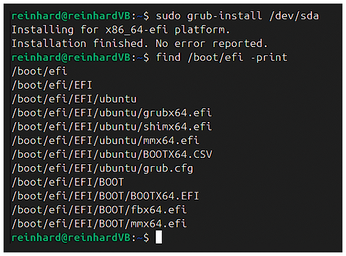
First, you need to update the operating system. Once it is updated, you then install the GRUB 2 UEFI software (grub-efi). Next, you need to mount the partition, which is used for UEFI. This partition must be formatted to FAT32. Once mounted, you install GRUB with the command grub-install (Figure 5). That's it.
Installing GRUB 2 for legacy BIOS is easier. Like with UEFI, you first update your operating system before installing the GRUB 2 installer (grub-pc in this instance). Once downloaded, you again launch the command grub-install, which will install GRUB 2 in the disk's MBR. The installer will know where to find it.
Configuring GRUB 2
Once installed, GRUB 2 needs to be configured. Again, in most cases, the GRUB 2 installation procedure makes the "best guess" to ensure that the current operating system's boot process goes well. If you want something different from the standard installation, you need to do some additional configuration steps.
GRUB 2 gets its parameters from a file called grub.cfg. You should never modify this file, because it is generated automatically, and any changes to this file will be overwritten at the next kernel update. The grub.cfg file is generated from the configuration file grub.conf, which is located in /etc/default. The second source of input to grub.cfg is the contents of /etc/config/grub. The files in this directory get loaded in the same sequence used by ls.
« Previous 1 2 3 Next »
Buy this article as PDF
(incl. VAT)
Buy Linux Magazine


US / Canada
UK / Australia
Subscribe to our Linux Newsletters
Find Linux and Open Source Jobs
Subscribe to our ADMIN Newsletters
Support Our Work
Linux Magazine content is made possible with support from readers like you. Please consider contributing when you’ve found an article to be beneficial.

News
-
Photoshop on Linux?
A developer has patched Wine so that it'll run specific versions of Photoshop that depend on Adobe Creative Cloud.
-
Linux Mint 22.3 Now Available with New Tools
Linux Mint 22.3 has been released with a pair of new tools for system admins and some pretty cool new features.
-
New Linux Malware Targets Cloud-Based Linux Installations
VoidLink, a new Linux malware, should be of real concern because of its stealth and customization.
-
Say Goodbye to Middle-Mouse Paste
Both Gnome and Firefox have proposed getting rid of a long-time favorite Linux feature.
-
Manjaro 26.0 Primary Desktop Environments Default to Wayland
If you want to stick with X.Org, you'll be limited to the desktop environments you can choose.
-
Mozilla Plans to AI-ify Firefox
With a new CEO in control, Mozilla is doubling down on a strategy of trust, all the while leaning into AI.
-
Gnome Says No to AI-Generated Extensions
If you're a developer wanting to create a new Gnome extension, you'd best set aside that AI code generator, because the extension team will have none of that.
-
Parrot OS Switches to KDE Plasma Desktop
Yet another distro is making the move to the KDE Plasma desktop.
-
TUXEDO Announces Gemini 17
TUXEDO Computers has released the fourth generation of its Gemini laptop with plenty of updates.
-
Two New Distros Adopt Enlightenment
MX Moksha and AV Linux 25 join ranks with Bodhi Linux and embrace the Enlightenment desktop.