


Messaging off the grid with Meshtastic
Performing a Range Test
After experimenting a bit with Meshtastic, you'll probably want to see how far you can extend the range of your mesh network. The first thing you should perform is a range test. Meshtastic even has a module for range testing. The module requires two devices: a sender and a receiver. The sender is a fixed device that periodically sends messages with increasing numbers to the default channel. The receiver is a mobile device with GPS that receives these messages and stores them along with the GPS coordinates in a CSV file.
To perform the test, enable the Range Test module on both devices. On the sender, set the sender message interval to a number of seconds. For the Long Fast modem preset, 30 seconds is recommended. Sending messages more often uses a lot of air time, spams your default channel, and slows down the local mesh network for all users. On the receiver, just enable the module and leave the sender message interval on 0 seconds, which disables sending messages. As communication happens over the default channel, you should configure a high precision for the device's position in the channel to register the correct locations.
After enabling the module on both devices, move around with your mobile device, be it through hiking, cycling, or driving in your car (although the car weakens the signal because you're not outside). When the test is complete, disable the module in both devices to prevent further spamming. Now, on the receiver, tap on the three dots at the top right and choose Export rangetest.csv. Then import this CSV file in an application such as uMap [12] to visualize the positions.
Improving Range
When you see that your mesh network doesn't reach as far as you want, it's time to optimize your setup. Numerous factors influence your coverage, so it'll require a bit of trial and error. If you look at Meshtastic's current range records [13], they all have one thing in common: They reach from one mountain top to another. This is the ideal situation, as there's an unobstructed line of sight between both devices. The current range record is 331km, established between mountain tops in Northern Italy and Slovenia.
If you don't live on a mountain top or can't place a Router device there, the next best thing you can do to improve range is mount a Meshtastic device as high as possible (e.g, on your rooftop or on a pole in your backyard). If a few people in your neighborhood do the same, this makes for an excellent connection between those devices, and messages from other devices will be rebroadcast further this way.
If even with your best location your range is still not satisfactory, maybe you could benefit from a better antenna. Meshtastic's documentation has a list of recommended LoRa antennas [14] and some tips for choosing the right antenna. Make sure to use an antenna that's tuned for your region's LoRa frequency. You can even test this with a vector network analyzer such as the NanoVNA [15]. However, never change the antenna while your Meshtastic device is transmitting, as radio signals transmitted without an antenna can reflect back and damage the device. So, power off the device or turn off TX enabled in the LoRa configuration of the Meshtastic app before an antenna swap.
Another factor to consider is the antenna gain, measured in decibel relative to isotropic (dBi). Contrary to what you would expect, a higher gain isn't always better. The antenna gain indicates how strong a signal can be sent or received in a specific direction, relative to an ideal antenna that sends or receives equally in all directions. If you know exactly in which direction you want to communicate with another fixed Meshtastic device, a high gain (5dBi or higher) could be beneficial: The antenna radiates in a narrow beam for a long distance. However, if the antenna location is high, the signal might overshoot anything below. In most circumstances, a low gain antenna (3dBi or lower) is sufficient.
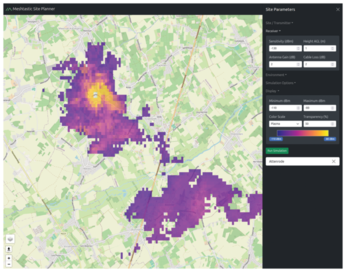
Nothing beats real tests, but you can also use the Meshtastic Site Planner [16] as a supplementary tool. The site planner allows you to simulate theoretical coverage of a device after choosing a location and entering various parameters such as the antenna gain, height, and more, as well as some parameters for the receiver. The map then shows where there are gaps in coverage, based on the information you entered and terrain data of your region (Figure 16). This information is useful if you want to know where you should place fixed devices to extend coverage of your mesh network.
Network Administration
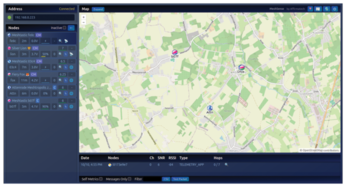
There are various tools to help with administration of your Meshtastic network. If you've set up a device on a high or remote location where it is impractical or maybe impossible to connect using Bluetooth or WiFi, you can configure remote administration [17]. To do this, connect your app to the local device that you'll want to use to administer the remote device. Open Security in its radio configuration and copy its public key. Then connect to the remote device in your app, go to the same Security section in the configuration, and tap Add to add an Admin Key. Paste the public key from the first device. You can supply up to three admin keys. After sending this configuration change, just connect to the first device, tap on the short name of the remote device, tap More details, and then select Remote Administration at the bottom. After this, you get access to the radio and module configuration of the remote device, and all this communication is happening over the Meshtastic network, so you can do this from far away. Another useful tool is MeshSense [18]: If you connect MeshSense to one of your devices, it collects all information from your local mesh and displays the information in tables and on a map so you can assess the current state of your network (Figure 17).
Buy this article as PDF
(incl. VAT)
Buy Linux Magazine


US / Canada
UK / Australia
Subscribe to our Linux Newsletters
Find Linux and Open Source Jobs
Subscribe to our ADMIN Newsletters
Support Our Work
Linux Magazine content is made possible with support from readers like you. Please consider contributing when you’ve found an article to be beneficial.

News
-
Parrot OS Switches to KDE Plasma Desktop
Yet another distro is making the move to the KDE Plasma desktop.
-
TUXEDO Announces Gemini 17
TUXEDO Computers has released the fourth generation of its Gemini laptop with plenty of updates.
-
Two New Distros Adopt Enlightenment
MX Moksha and AV Linux 25 join ranks with Bodhi Linux and embrace the Enlightenment desktop.
-
Solus Linux 4.8 Removes Python 2
Solus Linux 4.8 has been released with the latest Linux kernel, updated desktops, and a key removal.
-
Zorin OS 18 Hits over a Million Downloads
If you doubt Linux isn't gaining popularity, you only have to look at Zorin OS's download numbers.
-
TUXEDO Computers Scraps Snapdragon X1E-Based Laptop
Due to issues with a Snapdragon CPU, TUXEDO Computers has cancelled its plans to release a laptop based on this elite hardware.
-
Debian Unleashes Debian Libre Live
Debian Libre Live keeps your machine free of proprietary software.
-
Valve Announces Pending Release of Steam Machine
Shout it to the heavens: Steam Machine, powered by Linux, is set to arrive in 2026.
-
Happy Birthday, ADMIN Magazine!
ADMIN is celebrating its 15th anniversary with issue #90.
-
Another Linux Malware Discovered
Russian hackers use Hyper-V to hide malware within Linux virtual machines.