


Messaging off the grid with Meshtastic
LoRa and Channel Configuration
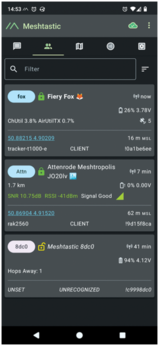
If there are other Meshtastic devices nearby, you might have already received a notification indicating a new device. The app adds every new device that it discovers in the list under the icon with two people (Figure 8). I'll get to that later, but first you need to review the LoRa and channel configuration. Open the radio configuration again and choose LoRa.
The default modem preset is LONG_FAST, which I explained earlier. You can tap on the preset and select another preset from the drop-down list, but only do so if you know what you're doing. Keep in mind that communication is only possible with devices sharing the same Region and Modem preset settings. Hence, if you want to create a mesh network in your neighborhood using a modem preset different from the default, communicate this clearly to newcomers; otherwise they risk forming their own separate mesh network. For custom settings, disable Use modem preset. This allows you to set the bandwidth, spread factor, coding rate, and frequency offset manually instead of adopting one of the presets.
Once you've decided on the modem preset, send the configuration changes to the device and return to the Channels section of the radio configuration. Meshtastic supports up to eight channels, each carrying individual settings, including an encryption key. Note that the modem preset settings remain the same across all channels.
By default, a Meshtastic device has a single channel called LongFast, on index 0. The channel on index 0 is called the primary channel, and periodic broadcasts like position and sensor telemetry are only sent over this primary channel, if these broadcasts are enabled on the device. Tap on the channel name to change its settings. The pre-shared key (PSK) is the encryption key used for the channel. For the default channel, this is a publicly known encryption key of one byte with hexadecimal value 0x01. The app shows the PSK in Base64 format, which is AQ== for the default key. You can verify this by running the following in a shell:
echo -ne "\x01"|base64
If you only want to communicate on this public channel, leave these settings as is. Don't change the channel name and PSK, as both should match those from other devices to enable communication. However, if you don't want your position to be sent publicly (because the position is shown on a map in the Meshtastic app), disable Position enabled or move the position slider to the left for less precision so people only know you're somewhere in a broad circle.
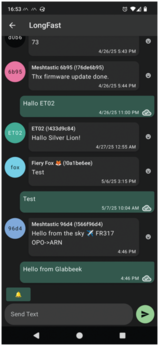
The public channel is shown under the chat icon in the app's main screen, with its index 0 and its name LongFast. Simply tap on it, enter a text, and press the green arrow to send the text as a Meshtastic message. Other Meshtastic users within proximity will receive this message on their device, and their devices will rebroadcast your message if their device role supports rebroadcasting. You're now communicating off-grid (Figure 9)!
Private Channels
As previously mentioned, Meshtastic supports up to eight channels, each with its own name and encryption key. This allows you to set up private communication channels with different user groups. Messages on all channels are still rebroadcast by devices in your neighborhood to improve coverage, but they remain unreadable if those devices haven't set up a channel with the same name and encryption key.
Given that position and telemetry data is only sent over the primary channel and might contain privacy-sensitive information, the recommended approach is to create your own private channel with index 0 and then recreate the public channel LongFast with the well-known encryption key as a secondary channel (Figure 10). In the radio configuration, tap on Channels and remove the default channel by tapping on the cross at the right of its name. Then tap on the plus icon at the bottom right to create a new channel.
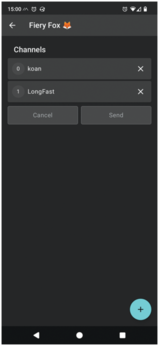
The app automatically fills in the LongFast channel name and the well-known key, but change this setting to your own channel name with a maximum of eleven characters. This will automatically generate a new random PSK; you can regenerate it with a tap on the circled arrow. We'll talk about the uplink and downlink settings later, but if you want to use Meshtastic to find other people in your group (e.g., when hiking, turn on Position enabled and leave Precise location enabled). Tap on Save. This makes this channel the primary one. Then create another channel, keeping all settings default. This sets the public channel as a secondary channel. Tap on Send to save these changes on your Meshtastic device. You can now choose the channel you want to send messages on under the message icon.
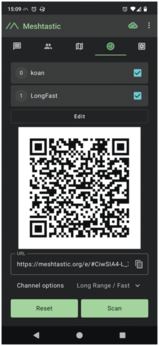
Of course, you need to share these channel settings with each person you want to include in this group, so they can set up the same channel on their device. Thankfully, the Meshtastic app simplifies this under the channel configuration icon, providing a QR code and a URL that you can share with other users (Figure 11). Just disable the channels that you don't want to share and then let the others scan the resulting QR code or send them the URL and ask them to enter it in the URL field. Users can still deselect channels that they don't want to join, and they can even decide whether to add the new channels to their existing settings or to completely replace them.
Direct Messages
Private channels are nice for communicating within a group of people, but what if you want to have a private chat with one person? For direct messages between individuals, Meshtastic uses asymmetric key cryptography. In the radio configuration, tap on Security to see your device's key pair. The public key is shared with other devices on the mesh network to allow them to compute a shared secret key for secure communication. The private key should always be kept confidential.
Now, if you want to send a direct message to another user, simply tap on the device's short name in the device list and choose Direct Message. Type your message in the text field and press on the arrow icon. The other user now receives your encrypted message, allowing you to chat securely. However, if the other user still runs older Meshtastic firmware (less than version 2.5), this won't work. Instead of a green closed lock, you'll then see a yellow open lock icon for this device. Another icon you might encounter is a red lock. This icon shows that the device's public key differs from the public key your Meshtastic client knows for this device. This is the case when the user has reinstalled the firmware on the device while wiping its configuration, or it could point to a man-in-the-middle attack. In this case, you should ask the user for their public key using an alternate secure method.
Buy this article as PDF
(incl. VAT)
Buy Linux Magazine


US / Canada
UK / Australia
Subscribe to our Linux Newsletters
Find Linux and Open Source Jobs
Subscribe to our ADMIN Newsletters
Support Our Work
Linux Magazine content is made possible with support from readers like you. Please consider contributing when you’ve found an article to be beneficial.

News
-
Parrot OS Switches to KDE Plasma Desktop
Yet another distro is making the move to the KDE Plasma desktop.
-
TUXEDO Announces Gemini 17
TUXEDO Computers has released the fourth generation of its Gemini laptop with plenty of updates.
-
Two New Distros Adopt Enlightenment
MX Moksha and AV Linux 25 join ranks with Bodhi Linux and embrace the Enlightenment desktop.
-
Solus Linux 4.8 Removes Python 2
Solus Linux 4.8 has been released with the latest Linux kernel, updated desktops, and a key removal.
-
Zorin OS 18 Hits over a Million Downloads
If you doubt Linux isn't gaining popularity, you only have to look at Zorin OS's download numbers.
-
TUXEDO Computers Scraps Snapdragon X1E-Based Laptop
Due to issues with a Snapdragon CPU, TUXEDO Computers has cancelled its plans to release a laptop based on this elite hardware.
-
Debian Unleashes Debian Libre Live
Debian Libre Live keeps your machine free of proprietary software.
-
Valve Announces Pending Release of Steam Machine
Shout it to the heavens: Steam Machine, powered by Linux, is set to arrive in 2026.
-
Happy Birthday, ADMIN Magazine!
ADMIN is celebrating its 15th anniversary with issue #90.
-
Another Linux Malware Discovered
Russian hackers use Hyper-V to hide malware within Linux virtual machines.